Remote
Run the music on another Mac from this one. Browse and pick on your laptop, and the Mac wired to the fancy speakers does the playing.
What Remote is
Kapell’s Remote feature lets one Mac running Kapell (the controller) control the music playing another Mac running Kapell (the receiver). From the controller you browse, search, and press play. The receiver then does the actual playing, through whatever DAC, speakers, or unobtainium plated equipment it’s plugged into.
Remote is in beta in 1.6.0. If something breaks, Settings ▸ Remote ▸ Send Feedback… (or Help ▸ Send Feedback…) opens an email to report the problem.
Remote works between Macs on the same local network. Nothing goes through Kapell's servers. Each pair of Macs shares a key that never crosses the network, and every connection is encrypted with it. A Mac that hasn't turned on receiving isn't visible to the network at all.
Set up the receiver
Do this on the Mac that’s connected to your speakers.
Authorize the receiver for your purchases
Problems with content playing on the receiver? It could be a lack of authorization. This bit me during development.
Songs you've uploaded to your library that aren't in Apple's catalog, like DJ mixes or rips of rare records, play only on a Mac that's authorized for your Apple ID. On the receiver, open the Apple Music® app and choose Account ▸ Authorizations ▸ Authorize This Computer.
Get the best sound out of it
The receiver is the Mac doing the playing, so its audio settings are the ones that count. On the receiver, turn on Lossless in Apple Music, then set your DAC’s sample rate in Audio MIDI Setup.
Pair from the controller
Do this on the Mac you’ll be browsing from.
The code check is for safety. If the codes ever don’t match, don’t pair!
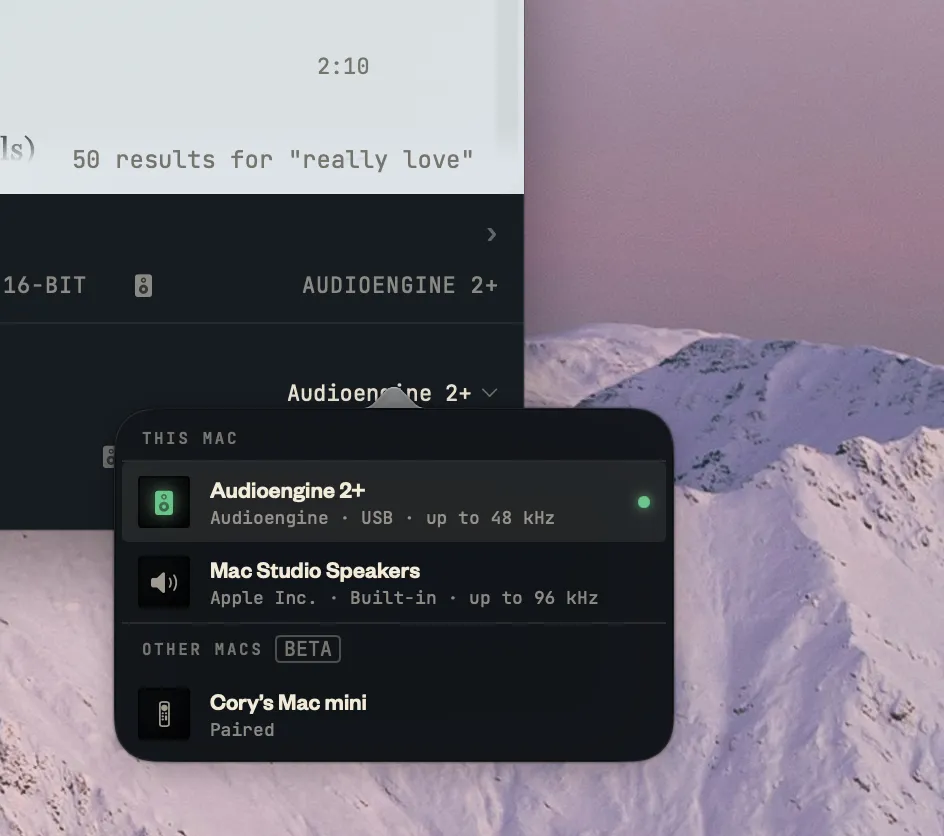
Pairing happens once. After that, the receiver is always in the controller’s Other Macs list, and you just pick it.
Playing on another Mac
Once you pick a receiver, the chin reads Playing on <name>, and the controller now controls the receiver: albums, playlists, stations, Crates, search results. Play/pause, skip, and scrub all drive the receiver. The controller’s Signal Path readout shows the receiver’s DAC, sample rate, and bit depth, so you can see what’s actually reaching the speakers.
To bring the music back to the controller, open the output picker and choose one of this Mac’s own outputs. Easy!
The receiver keeps its own controls
The receiver isn’t locked while a controller is driving it. You can walk up to it and pause, skip, or change the volume with its own transport. There’s one queue, and whoever pressed last wins.
The Receiving page
When receiving is on, the receiver gets a Receiving sidebar. It shows what’s playing, what has played, and what’s up next, whether the music was started from another Mac or from the receiver itself. A receiver opens on this page at launch, so a Mac in a rack (lol) shows the right thing on its screen. On the controller, the Queue link under Playing on… in the chin opens the same view of the receiver’s queue.
Good to know
- IDLibrary-only songs need the same Apple ID. Anything in Apple's catalog plays on any receiver with an Apple Music subscription. Songs that are only in your library play on the receiver only when both Macs use the same Apple ID with Sync Library on. If some tracks can't make the trip, the chin says how many: N tracks aren't in its library.
- LOGPlays are logged where the music plays. A track played through a receiver goes into the receiver's Listen Log and is scrobbled from there. It shows up in the controller's Listen Log too if both Macs share an Apple ID, because the log syncs over iCloud.
- PVTPrivate Mode belongs to the receiver. While you're playing on another Mac, the Private Mode switch you flip on the controller is the receiver's. Each Mac keeps its own setting, and switching outputs doesn't carry it over. A private Crate stays private wherever it plays.
- CRTCrates keep your place. Play a Crate on a receiver, and the controller keeps track of where you are in it, the same as playing locally.
- VERBoth Macs need the same version of Kapell. A receiver on a different version is greyed out in the list and marked Needs the same version of Kapell. Update both.
- SUBThe receiver plays with its own subscription. A receiver signed in without Apple Music plays 30-second previews of catalog songs, the same as Kapell does locally without a subscription.
If it isn’t working
- LAN"None found" in Other Macs. Check that receiving is on in Settings ▸ Remote on the other Mac, that Kapell is open there, and that both Macs are on the same network.
- NET"Waiting for Local Network access". The receiver hasn't been given Local Network permission. Turn Kapell on in System Settings ▸ Privacy & Security ▸ Local Network.
- OFF"Can't reach it". The receiver is paired but not answering. It may be asleep, Kapell may be quit, or it may be on another network.
- KEY"Pair again". The receiver no longer recognizes this Mac, usually because it was unpaired on that side. Choose it and compare codes again.
- UNPUnpairing. Both Macs list each other under Settings ▸ Remote, as Paired controllers or Paired receivers. Unpair on either side ends it.